
How to Add Students in Bulk to Your Daycare Registration Software
Use MyKidReports' Roster Upload Tool to bulk upload new student profiles, information & contacts seamlessly!
Using the Roster Upload Tool in MyKidReports is the quickest way to add student profiles, their personal information, and any additional student contacts from your previous platform. MyKidReports Premium customers benefit from unlimited roster uploads, with completion typically within the same day, and always within 24 hours!
Important Information
We understand that you might not have all the information when creating a student profile, so we've kept the requirements minimal. For roster import, only the First Name, Last Name, date of birth, and at least one parent's contact information are needed. This ensures that actions and activities can be logged immediately after import.
Note: Acceptable fields
As long as the roster has at least 10 students, includes the required information mentioned above, and is in an accepted format (CSV, XLSX, PDF, or DOC), our team will handle the import for you. CSV or XLSX formats are preferred as they help prevent conversion errors.
Please note that after the import, our team does not send invites to student contacts. You can easily invite them by following the steps outlined [here].
Export Your Roster from a Third-Party System
Switching to MyKidReports from another platform? We’re here to make the transition as smooth as possible! Check out our [Roster Exports from Other Systems] resource to see if your current provider is listed, and follow the instructions to export your roster. Then, return to this guide to proceed with the import!
💡 If your current platform allows filtering based on student status, we recommend exporting only active students to avoid confusion and ensure that only currently enrolled students are imported into MyKidReports
Steps to upload your roster
Once your roster meets the above guidelines, it’s ready to be uploaded! Make sure you are logged in to the appropriate school account, then follow these steps:
- Log in to the school’s account on the web.
- Expand the My School tab and select Students.
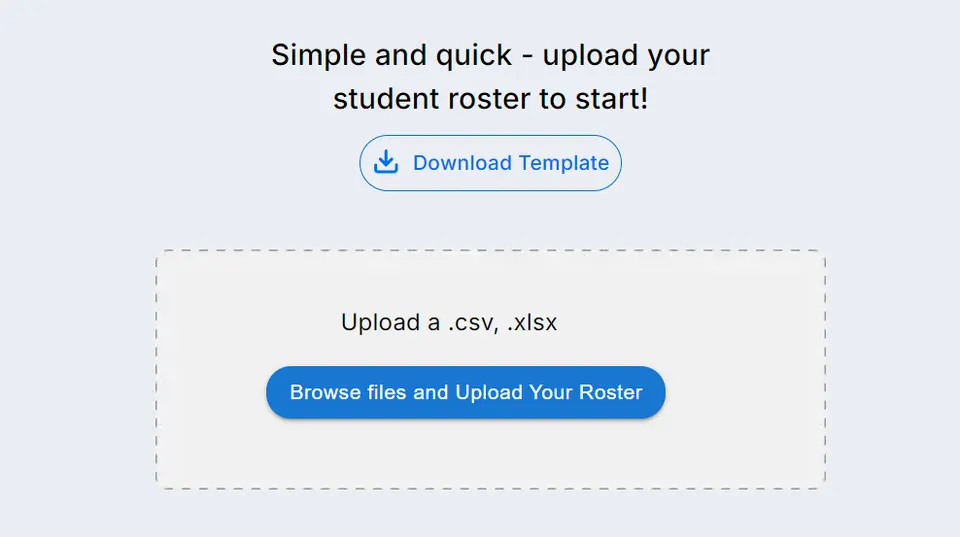
- Drag or select the roster file to upload.
- Download the roster template and fill in student details and family information. Make sure you have at least “Rooms” and “Students” in roster form to get started.
- Upload your roster and let MyKidReports take care of the rest. You’ll see students and families within 1-2 business days, you’ll also got an email when upload is completed.
Why Bulk Student Upload Beats Manual Data Entry
Typing student profiles in one at a time is the slowest part of adopting new daycare registration software. A center with 60 children easily carries 400+ data points across family contacts, birth dates, rooms and authorized pickups. Entered by hand, that is a full afternoon of admin work — and a single typo in a parent’s phone number means a family that never receives its invite. A bulk student upload moves the same information in one file, is checked by the MyKidReports migration team, and your roster is typically live the same day.
This matters at every size of program, and most of all for large centers and multi-site networks: whether you run a 5-child home program or several locations with hundreds of students, the roster upload works the same way, and Premium plans include unlimited roster uploads at no extra cost.
Preparing Your Spreadsheet: Avoiding Common Import Errors
Most import delays come from a handful of avoidable formatting issues in the childcare enrollment data itself. Before you upload, run through this checklist:
- Keep one row per child, with first and last name in separate columns.
- Use one consistent date format for every date of birth (for example MM/DD/YYYY).
- Put second parents and emergency contacts in their own columns, not in a notes field.
- Remove withdrawn or graduated students — export only active enrollments from your old system.
- Spell room names exactly as you created them in MyKidReports, so children land in the right classroom automatically.
After the Import: Enrollment, Waitlist and Billing Setup
Once students and families appear in your account, three quick steps turn the imported roster into a working center: send parent invites so families join the app, confirm each child’s room and schedule, and switch on tuition billing with autopay so invoices go out on time from week one.
Families that are not yet enrolled don’t belong in the active roster — keep them on the waitlist instead. MyKidReports doubles as daycare waitlist software, so you can track inquiries and move a child to active enrollment in one click when a seat opens. From then on, new families can register themselves through your online childcare enrollment form, which means the bulk upload is the last spreadsheet you should ever need.
Frequently Asked Questions
Which file formats can I upload?
CSV, XLSX, PDF or DOC. CSV and XLSX are preferred because they avoid conversion errors.
How long does the roster import take?
Typically the same day and always within 24 hours; very large or multi-site rosters can take 1–2 business days. You get an email when it is complete.
Can I switch from another platform mid-year?
Yes. Export only your active students from your current system (see our guide to roster exports from other systems), upload the file, and the migration team does the rest. Data migration is free.
Does bulk upload cost extra?
No. Roster import and data migration are included — MyKidReports is free forever for up to 5 children, then $0.99 per child per month with no setup fees, and paid plans start with a 14-day free trial.
New to MyKidReports? See how the full childcare software platform handles enrollment, billing and parent communication once your roster is in.